Set up your help center
Your help center is a public page where customers search your docs, read your articles and ask questions in their own words. Every answer shows the page it came from.
Watch it done · 0:58
Read the transcript
0:01Here's how to set up your hosted help center.
0:05Open Help center and switch it on. It goes live straight away, at your own PageTruth address.
0:12Add your logo, product name and brand colour, so it looks like part of your product.
0:18Write the headline and subtitle customers see first.
0:22Suggested questions give customers a one-tap way to start.
0:29On the Growth and Scale plans, you can serve it on your own domain, too.
0:33Customers can search, or ask in their own words.
0:37Each answer comes only from your docs, with a link to the page it used.
0:42Your articles are listed by collection, and every one has its own page.
0:51Your help center is live. Next, put the same answers inside your product with the widget.
Before you start
- At least one source shows Ready on the Knowledge page.
Five steps
Open the Help center page
Choose Help center in the sidebar.
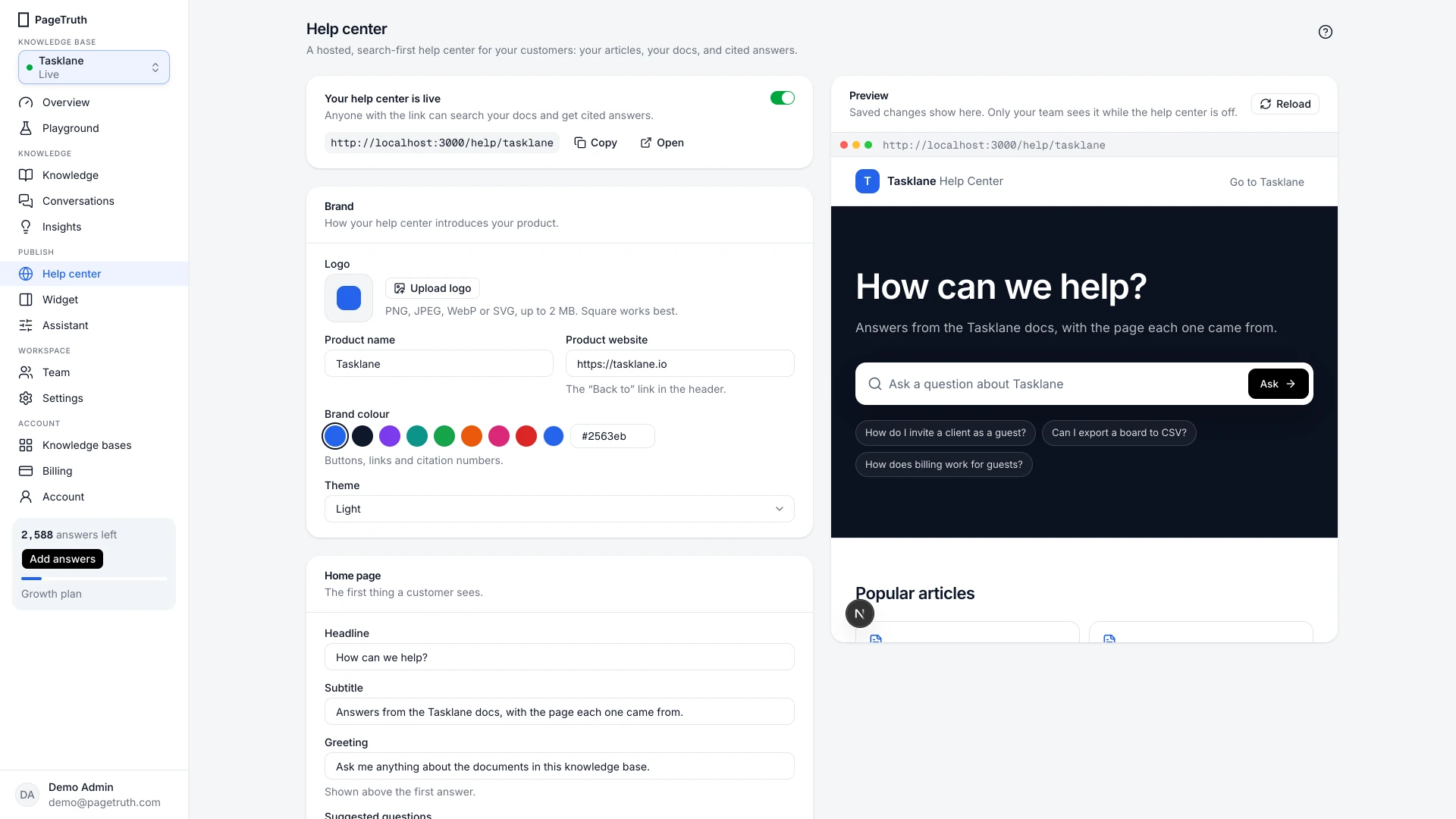
Check the preview
The preview on the right shows your help center with its saved settings. Only your team can see it while the help center is off, so you can get it right first.
Set your brand and home page
Add your logo, product name and colour under Brand, and your headline and suggested questions under Home page. Brand your help center and Choose the home page cover each field.
Switch it on
Turn on Help center on, then choose Save changes in the bar at the bottom of the page.
Share the link
Your help center is now at
pagetruth.com/help/your-address, where "your-address" is the knowledge base's address from Settings. Link to it from your product's Help menu, your website footer or your support emails.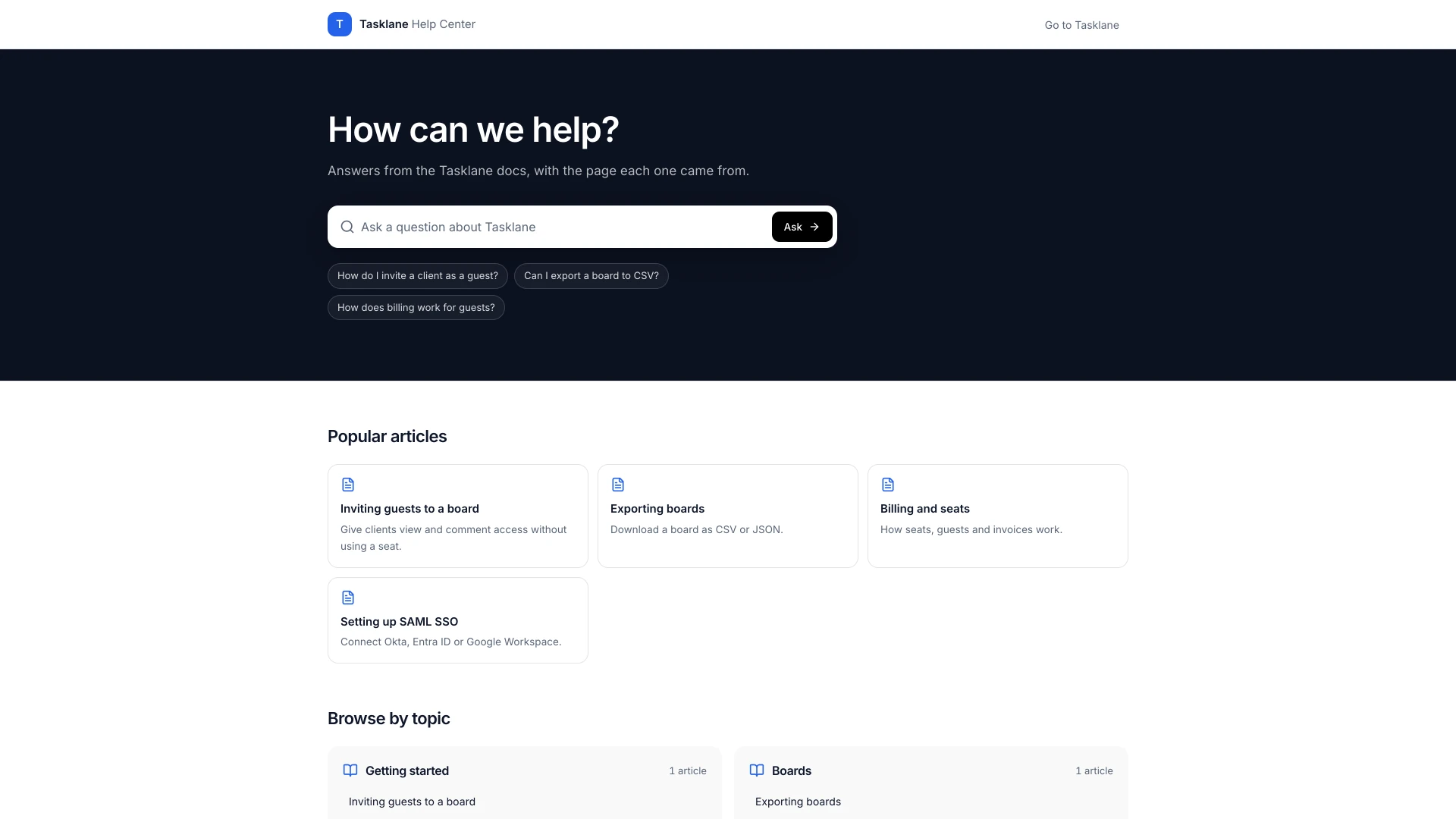
The link opens your help center for anyone, and a question asked there shows up under Conversations with the channel Help center.
Turn it off
Turn off Help center on and save. The address stops answering straight away; your team can still preview it.
If something's not right
I changed something but the help center looks the same
Choose Save changes in the bar at the bottom. Unsaved changes show "You have unsaved changes".
I want it on my own domain
Growth and Scale plans can serve it on an address like help.acme.com. See Connect a custom domain.
Articles don't show in the help center
Only published articles show. Open Knowledge, then Articles, and check their status says Published.