Write and publish an article
Articles are the fastest way to fill a gap your docs leave. Write in Markdown, publish, and a minute later answers can cite it.
Five steps
Start a new article
Choose Knowledge in the sidebar, open the Articles tab and choose New article.
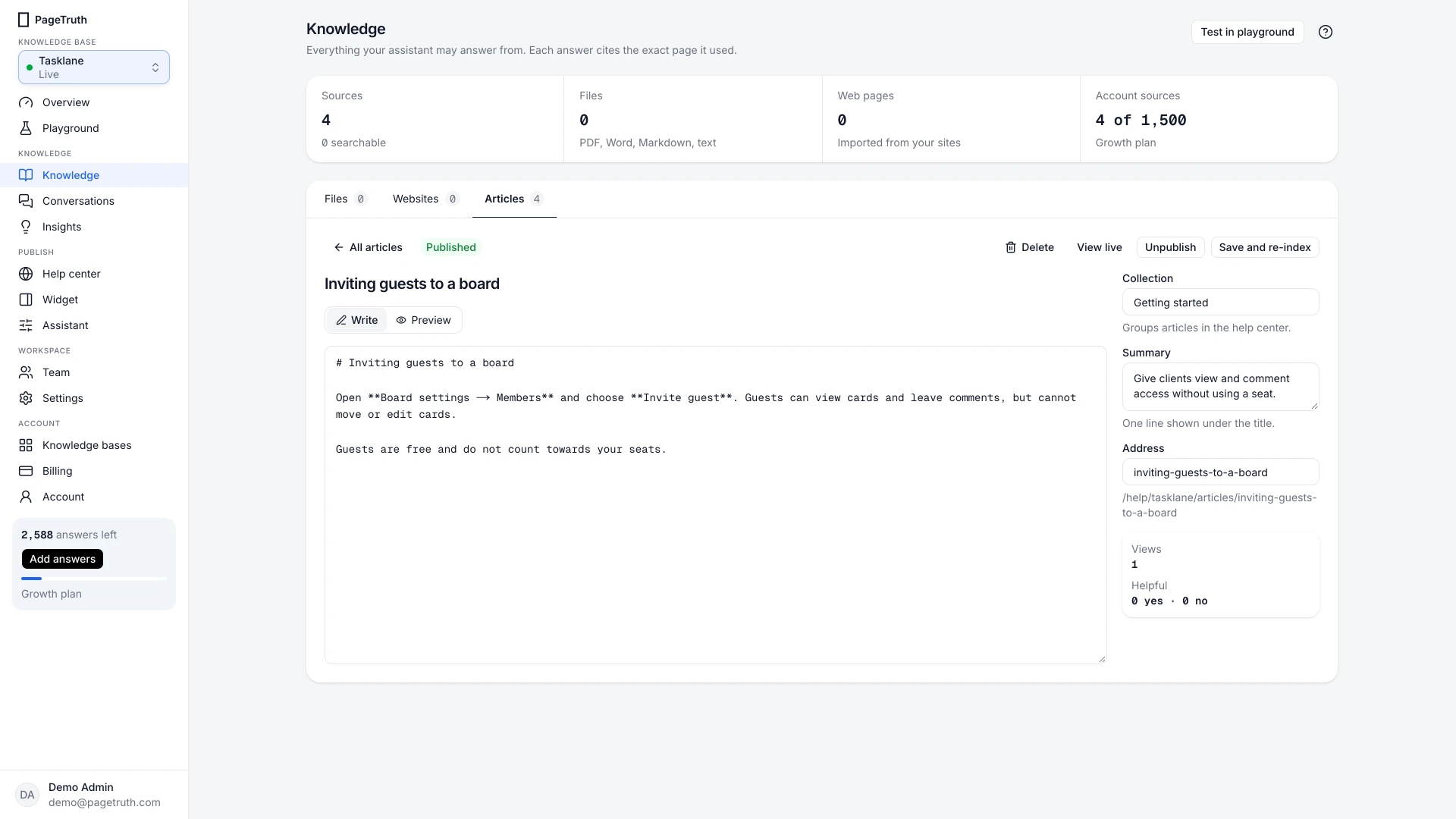
Write it
Give it a title, then write the body in Markdown. Headings, lists, bold,
codeand tables all work. Switch to Preview to see it as customers will.Fill in the details
Beside the editor:
- Collection groups articles in the help center.
- Summary is the one line shown under the title.
- Address is the end of its link in your help center. It's set from the title unless you change it.
Save or publish
Save draft keeps it private. Publish makes it searchable and shows it in your help center. "Published. Answers can cite it in a minute." confirms it.
Change it later
Open it from the list and edit. Save and re-index updates the live copy. Unpublish takes it out of search and the help center but keeps the draft. View live opens it in your help center when that's switched on.
The article shows Published in the list, and the playground cites it.
If something's not right
Publish says to write something first
An empty article can't be published. Add the body text, then publish.
The address is already in use
Another article in this knowledge base has that address. Change the Address field.
Views and Helpful show zero
They count visits and votes from your help center. They fill in once customers read the article there.