Upload files
Admin guides, runbooks, specs and release notes often live in files rather than on a website. Upload them and answers cite the page they came from.
Before you start
- Files in PDF, Word (.docx), Markdown (.md) or text (.txt), up to 50 MB each.
Three steps
Open the Files tab
Choose Knowledge in the sidebar. The Files tab opens first.
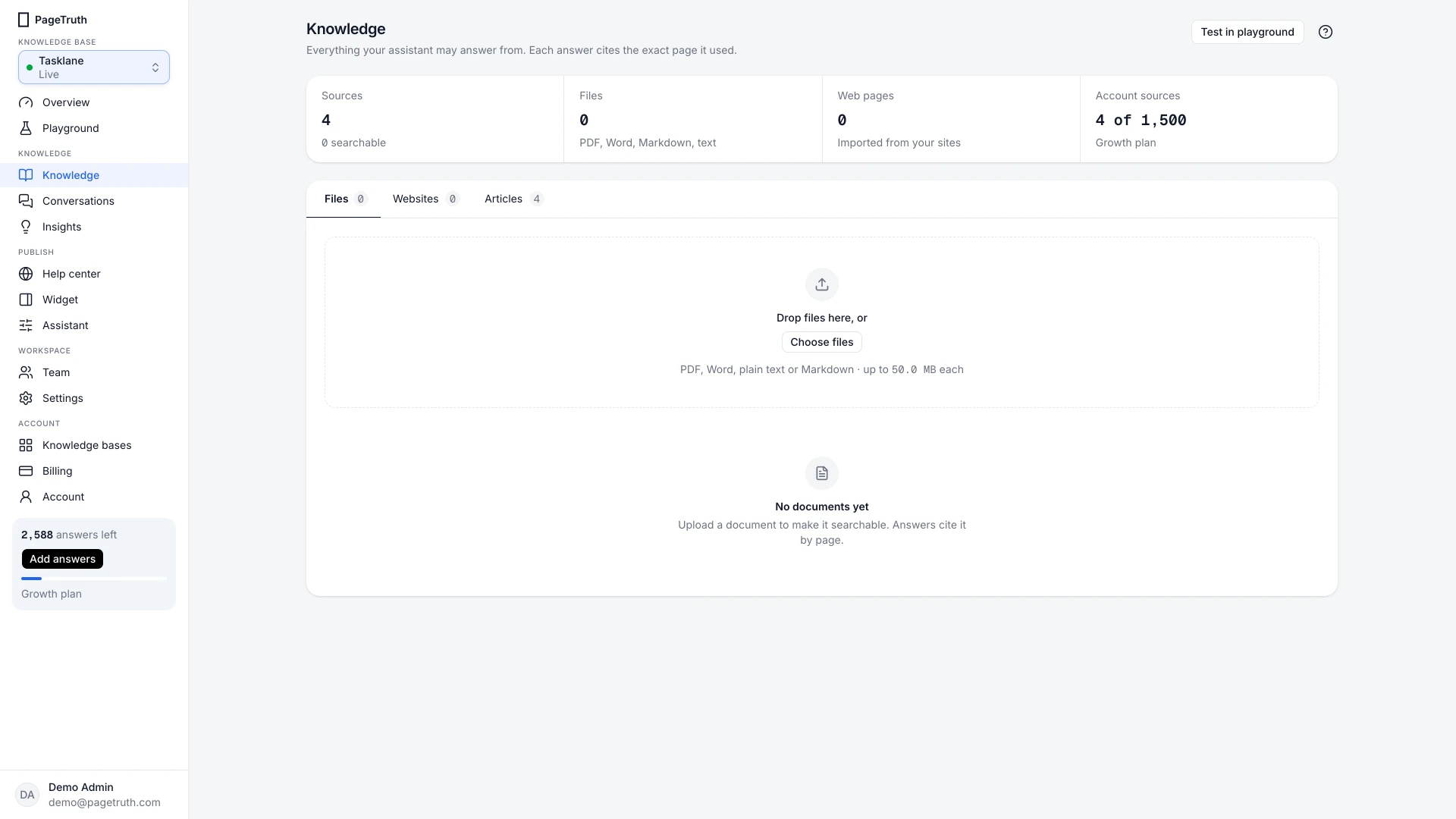
Add your files
Drag files onto the drop zone, or choose the link in it to pick them from your computer. You can add several at once.
Wait for them to be read
Each file goes through Uploading, Queued and Processing, then shows Ready with its page count. Scanned PDFs take a little longer: their text is read off the page.
Your files show Ready and the Sources tile at the top counts them as searchable.
If something's not right
A file shows Failed
The reason appears under its name. Why a source failed explains each one and what to do.
The file type isn't accepted
Convert it to PDF or Word first. Spreadsheets and slide decks aren't read directly.
I uploaded the wrong file
Choose Delete document on its row. Answers stop citing it straight away.