Add another product
One knowledge base per product keeps answers clean: a question about one product never cites another product's docs.
Before you start
- Your plan has room. Free and Starter include one knowledge base, Growth three and Scale ten. See Choose a plan.
Three steps
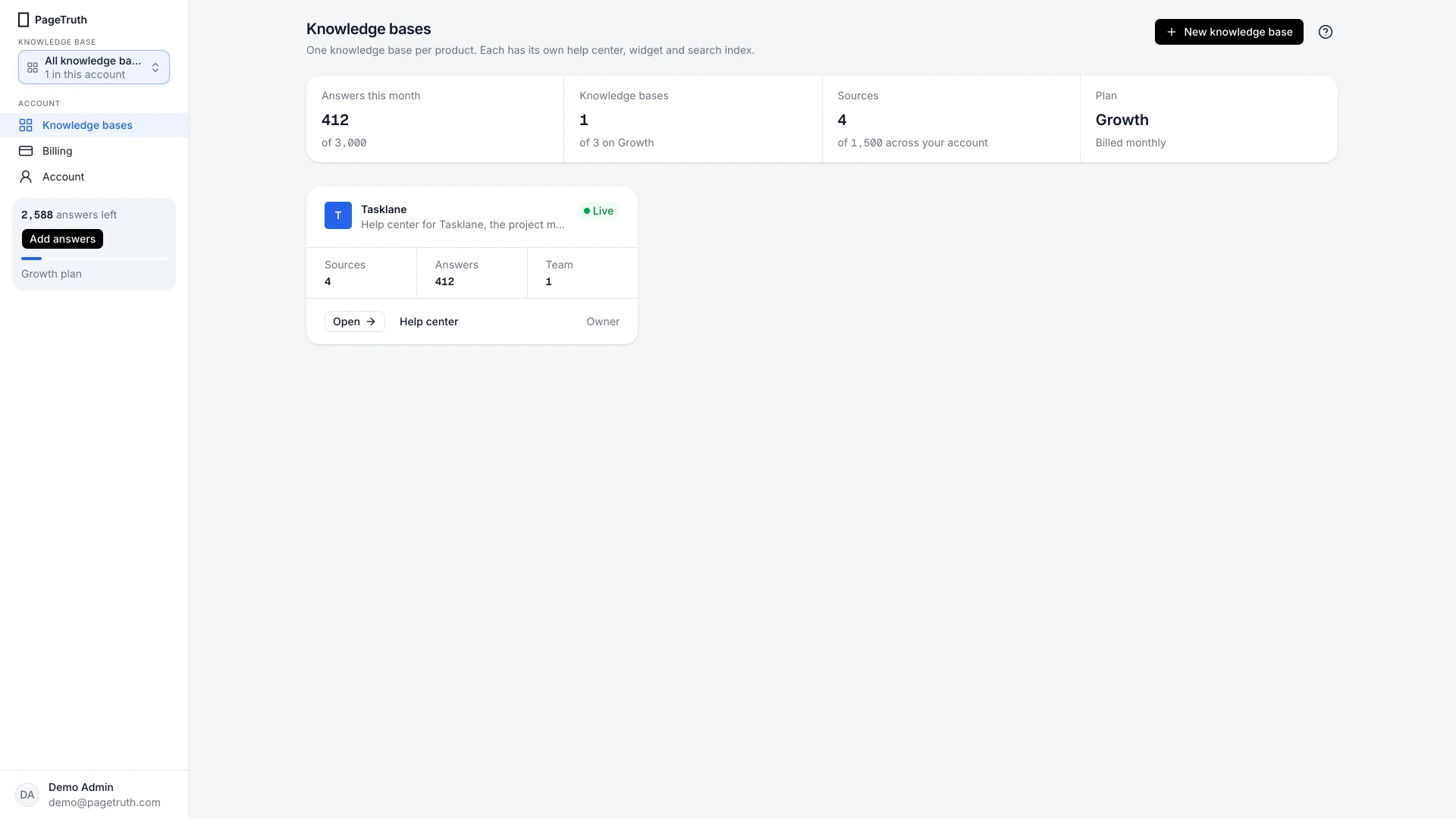
Open your knowledge bases
Choose Knowledge bases under Account in the sidebar.
Create the knowledge base
Choose New knowledge base. Enter the Product name, and optionally its Product website and a Description only your team sees. Choose Create knowledge base.
Add its knowledge
The new knowledge base opens. Add sources on its Knowledge page, then switch on its help center or widget when you're ready.
The new knowledge base has its own card on Knowledge bases, and the switcher at the top of the sidebar moves between them.
If something's not right
The New knowledge base button says I've reached my limit
Your plan's knowledge bases are all in use. Upgrade on Billing, or delete one you no longer need.
Answers in one product mention another
They can't: each knowledge base searches only its own index. If an answer looks wrong, check which knowledge base the widget's key belongs to on its Widget page.